
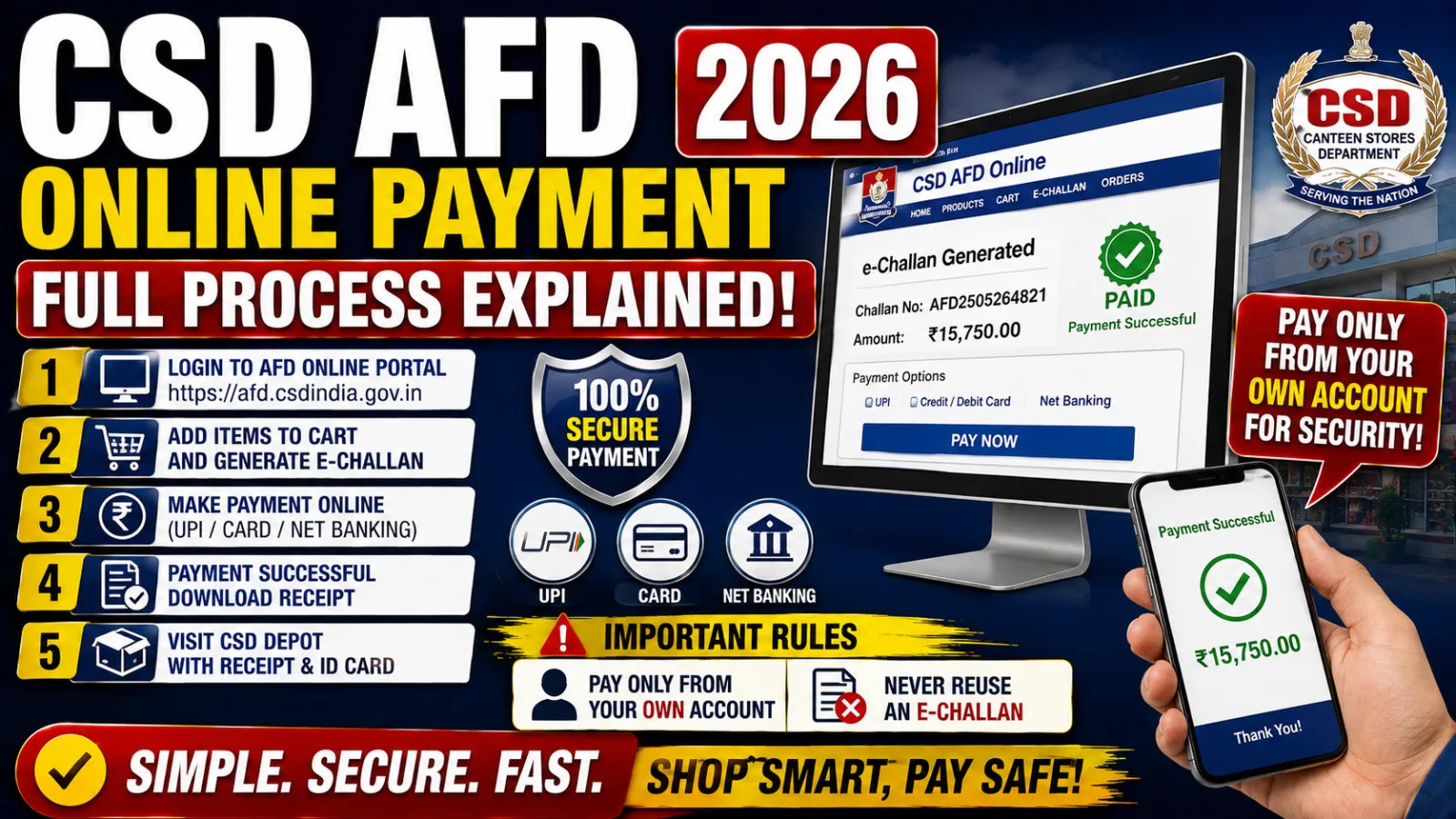
If you're buying a car, two-wheeler, AC, fridge, TV, or any other high-value item through the CSD AFD system, getting the CSD AFD online payment step right matters as much as the purchase itself — one wrong move here, like paying from someone else's bank account, can get your entire demand rejected. Here's the complete payment process: online, offline, and loan-based, plus the mistakes that most commonly trip people up.
What AFD Payment Actually Covers
AFD stands for Against Firm Demand — the CSD system that lets eligible beneficiaries buy specific high-value products, subject to eligibility, entitlement, and purchase-periodicity rules. Once your AFD demand is approved, you complete payment through one of three routes: online payment via the AFD Portal's payment gateway, offline NEFT/RTGS using an e-challan, or a loan-based payment when financing is involved. The right route depends on your specific purchase, so pick carefully.
The One Rule That Matters Most: Pay From Your Own Account
This is, by a wide margin, the most important thing to get right.
- Payment must come from an account belonging to the beneficiary — the person the AFD demand is registered to
- Payment from a third-party account is not accepted
- If a payment looks like a third-party transfer, the concerned CSD depot can reject the entire demand
- Cash is not accepted under any circumstance
So if the AFD demand is in your name, don't pay from your spouse's account, your child's account, a friend's account, or the dealer's account — even if it's more convenient at the time. This single rule causes more rejected demands than almost anything else in the process.
Step-by-Step: Making a CSD AFD Online Payment
Step 1: Log in to the CSD AFD Portal Use your registered credentials, and before proceeding, double-check your beneficiary details, the AFD demand itself, the selected product, dealer details, and the approved amount.
Step 2: Confirm the demand is actually approved Verify the product, model, quantity, dealer, total amount, and your beneficiary details before you touch the payment step. Don't transfer money based on a dealer's quotation or informal instruction — only pay once the portal itself shows the demand as approved and generates payment instructions.
Step 3: Select your payment option For a normal purchase, choose the online payment/payment gateway option. Depending on what's available at the time, you may see UPI, Card, Net Banking, or Bank Transfer as options.
Step 4: Pay from your own account This is the same rule from above, worth repeating at the actual payment step: the account or payment source must belong to you, the beneficiary — not your wife, son, daughter, a friend, or the dealer.
Step 5: Save your payment receipt Keep the payment confirmation, transaction ID, UTR/reference number (where applicable), payment receipt, a screenshot of the successful payment, and your AFD application/demand details. Hold onto these until your purchase and delivery are fully complete.
Which Online Payment Methods Actually Work
UPI — Supported through the AFD Portal's payment gateway. Just make sure the UPI payment originates from your own account/UPI setup.
Debit or Credit Card — Also supported, subject to whatever instructions the payment gateway displays on the payment page at the time.
Net Banking — Supported as well, with one specific catch for larger purchases (see below).
If Your AFD Item Costs More Than ₹10 Lakh
For purchases above ₹10 lakh, the portal may let you split the payment into two separate online transactions — this exists specifically to work around maximum transaction limits that apply to certain net-banking transactions. Only do this if the portal itself offers or permits the split; don't independently divide a payment into two transactions unless that option is presented to you.
Offline Payment Through NEFT/RTGS
If you select the Bank/Branch/Transfer option, you'll make payment through NEFT/RTGS using an e-challan generated by the payment gateway. The e-challan typically includes a Virtual Account Number, Challan Number, Merchant Order Number, IFSC Code, and the exact amount to deposit.
How it works:
- Select Bank/Branch/Transfer on the payment gateway
- Download the e-challan generated for you
- Check every detail carefully — Virtual Account Number, IFSC, amount, Merchant Order Number, Challan Number
- Print the e-challan and take it to your bank if you're completing the NEFT/RTGS transaction through a branch
- Transfer the exact amount shown on the e-challan
The e-challan rule that catches people out: it's generally valid for one transaction only. If the amount you remit doesn't match the amount on the e-challan, the payment gateway can reject the transaction — and the amount may then be refunded to the account you paid from. Don't change the figure on the e-challan, and don't reuse one e-challan for a different AFD transaction.
How Loan-Based AFD Payments Work
If your purchase involves financing, the process differs from a straightforward purchase:
- The loan portion is paid by direct bank transfer to the designated CSD Head Office AFD-I receipts account
- Any balance amount — whatever the loan doesn't cover — is paid separately by you, the beneficiary, through the standard AFD Portal online or offline payment methods
Worked example: say your AFD item costs ₹10 lakh, and your approved loan covers ₹8 lakh. The remaining ₹2 lakh is on you to pay directly, through the portal's usual payment routes.
Follow this loan-payment procedure only after your demand has been approved, and strictly according to whatever current instructions the AFD Portal displays at the time — these details can shift.
The CSD Head Office AFD-I Loan Account Details
For reference, here's the account information that's been circulated for AFD-I loan receipts:
- Account Name: CSD Head Office Main Account AFD-I Receipts Only
- Account Number: 0062002100156092
- Bank: Punjab National Bank, Fort Branch, Mumbai
- IFSC: PUNB0006200
A genuinely important caution here: don't rely on bank details copied from an old article, a WhatsApp forward, a screenshot, or any social media post — including this one. Bank account details for large payments are exactly the kind of information that gets outdated or, worse, spoofed. Before making any loan payment, verify the current account details directly on the official CSD AFD Portal against the latest CSD instructions, every single time.
After a Loan Payment: Upload Your UTR
Once you've made the transfer, you're required to upload the UTR/payment transaction details through the AFD system. This is what links your payment to your specific demand, so don't skip it. Save your UTR number, transaction date, amount, bank transaction receipt, and the account details used, then upload everything as instructed on the portal.
Online vs Offline vs Loan Payment — Quick Comparison
| Payment Method | How It Works | What Matters Most |
|---|---|---|
| Online | UPI, Card, Net Banking | Must come from your own account |
| Offline | NEFT/RTGS using e-challan | Pay the exact challan amount |
| Loan | Direct transfer per current CSD instructions | Upload UTR, pay balance separately if applicable |
Common Mistakes That Cause Rejections or Delays
- Paying from someone else's account — the single most serious, most common mistake
- Paying before the demand is approved — based only on a dealer's quote or verbal instruction
- Entering the wrong amount on an offline payment — it must match the e-challan exactly
- Reusing an old e-challan — each one is generated for a specific transaction
- Losing your UTR — especially painful for NEFT/RTGS and loan payments, where it's your proof of payment
- Using outdated bank details for a loan payment instead of verifying current ones first
Your Pre-Payment Checklist
Before any payment:
- Demand approved
- Product/model and dealer details checked
- Total amount verified
- Your own bank account ready
- Correct payment method selected
For online payment:
- Payment method selected (UPI/Card/Net Banking)
- Payment made from your own account
- Transaction successful, receipt and UTR saved
For offline payment:
- E-challan downloaded, virtual account and IFSC checked
- Exact amount confirmed before transfer
- NEFT/RTGS completed, bank receipt saved
For loan payment:
- Demand approved
- Current CSD bank details verified directly on the portal
- Loan amount transferred as instructed
- UTR saved and uploaded to the AFD Portal
- Balance amount paid separately through the standard method
What This Means for You
- Whatever you're buying — a two-wheeler, a car, or a home appliance — the payment rule is the same: your own account, no exceptions
- Don't rush a payment before checking that your demand is genuinely approved
- Treat bank details for loan payments as something to re-verify every time, not something to bookmark and reuse
- Keep every payment record until your purchase is fully delivered, not just until the payment clears
If you're earlier in the process and still working out documentation or registration, our CSD AFD Online Portal guide covers that step. For current pricing before you commit to a purchase, see our CSD two-wheeler price list and CSD car purchase eligibility and price guide, or browse the full CSD hub for other canteen benefits.
For more CSD and defence welfare updates like this, follow our government news section.